> ## Documentation Index
> Fetch the complete documentation index at: https://docs.veritrix.xyz/llms.txt
> Use this file to discover all available pages before exploring further.
# Set Up Your First Agent and View Traces in Veritrix
> A step-by-step tutorial to register on Veritrix, generate an SDK snippet from the Get Started page, drop it into your agent, and start viewing live traces.
This tutorial walks you through connecting your first AI agent to Veritrix — from account creation to seeing live traces flow into the **Traces** tab.
By the end, you'll have:
* A Veritrix account and project
* The Veritrix SDK snippet added to your agent code
* A validated connection
* Live traces streaming into the dashboard
## Step 1: Register on Veritrix
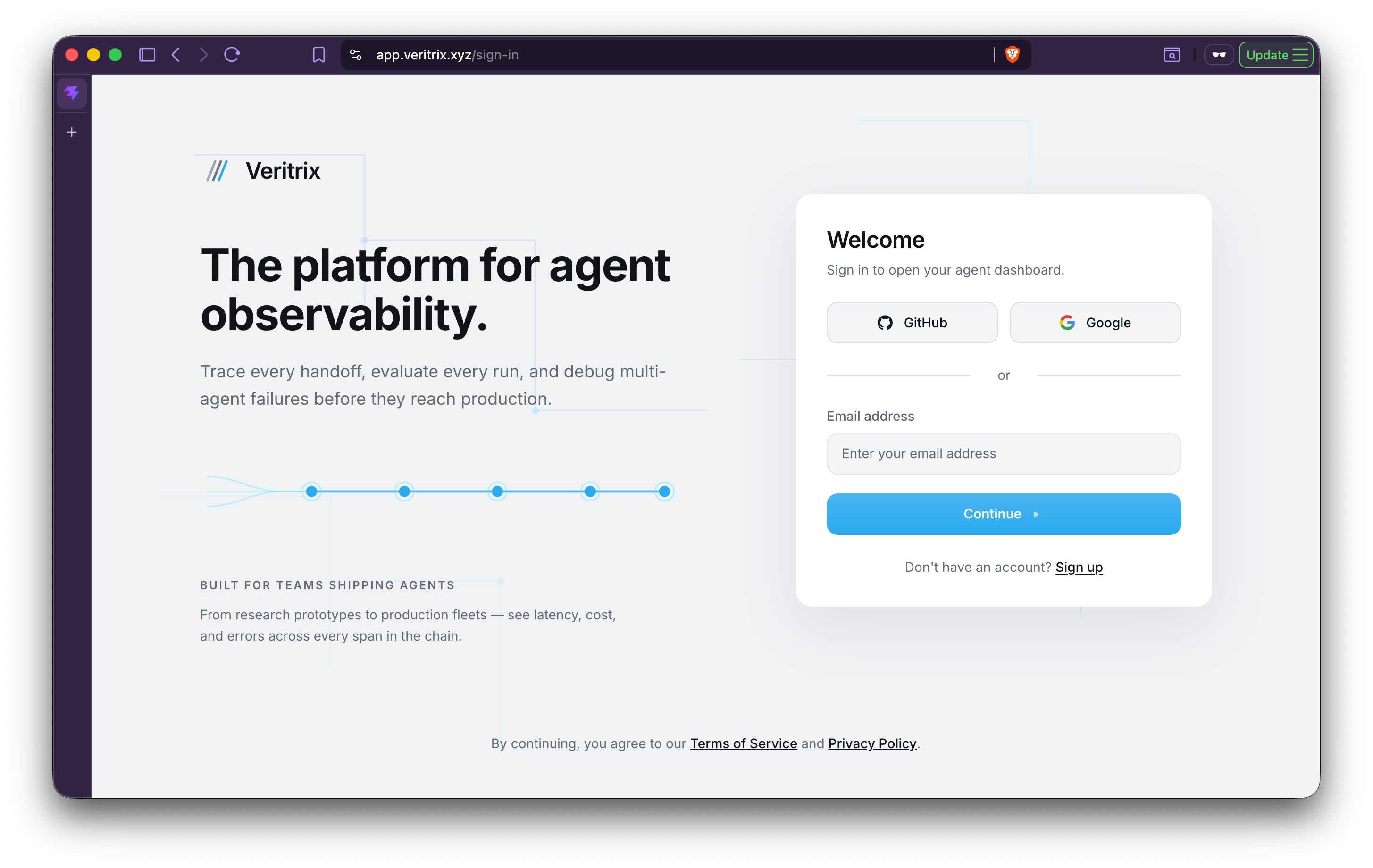
Head to [app.veritrix.xyz](https://app.veritrix.xyz) and create an account. You can sign up with Google, GitHub, or email.
Once your account is ready, you'll land on the Veritrix dashboard.
 ## Step 2: Open the Get Started page
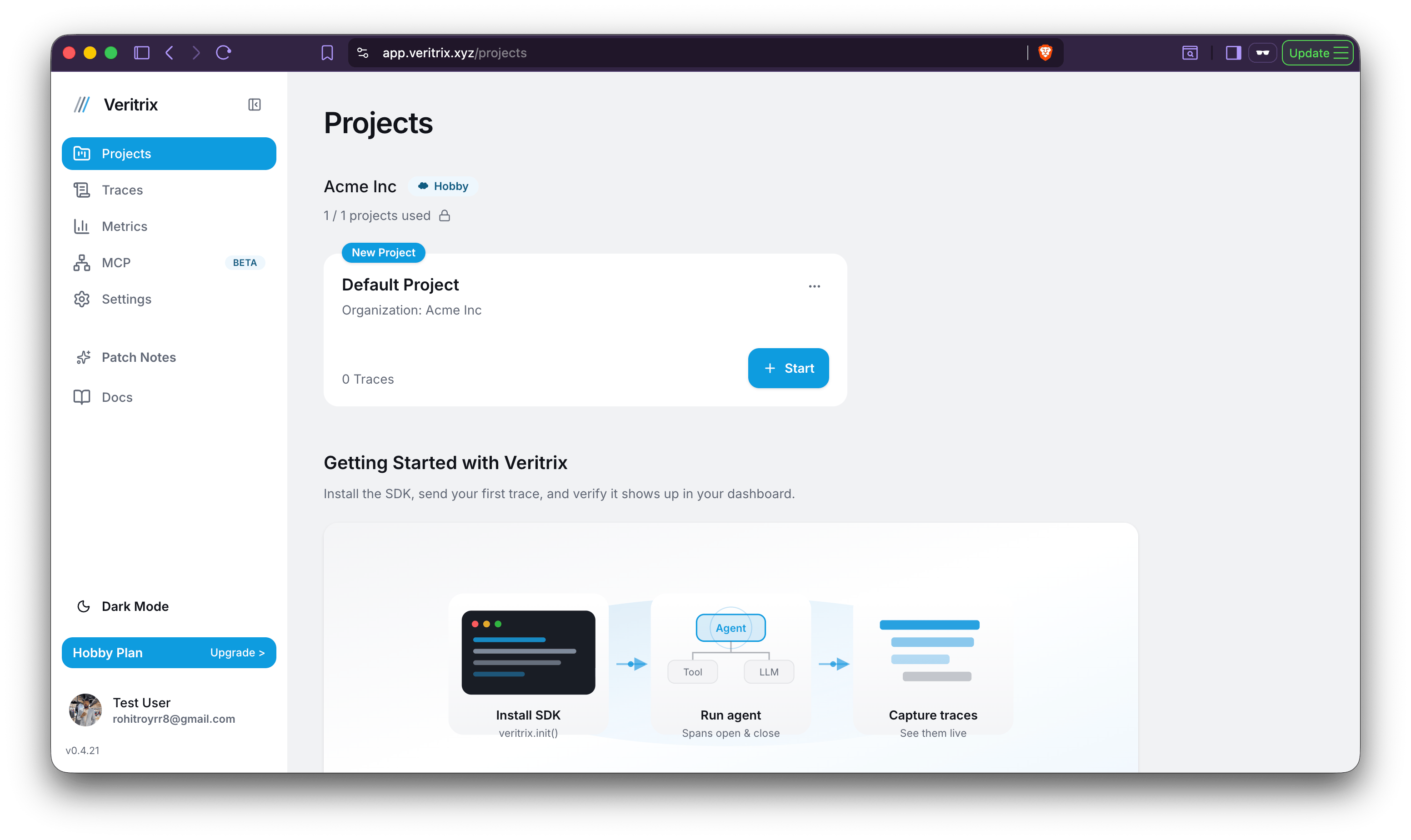
From the dashboard, click the **Start** button in the top navigation. This takes you to the `/get-started` onboarding page, where Veritrix helps you generate a ready-to-paste SDK snippet.
## Step 2: Open the Get Started page
From the dashboard, click the **Start** button in the top navigation. This takes you to the `/get-started` onboarding page, where Veritrix helps you generate a ready-to-paste SDK snippet.
 ## Step 3: Choose how you want to instrument your agent
On the Get Started page, pick the setup path that matches where your agent code lives:
Start from a blank template Veritrix generates for you. Great for exploring the product before wiring it into a real project.
Get a snippet pre-configured for a Colab environment. Ideal for prototypes, demos, and experiments.
Drop the snippet into an agent you already have running in your own repo or service.
## Step 3: Choose how you want to instrument your agent
On the Get Started page, pick the setup path that matches where your agent code lives:
Start from a blank template Veritrix generates for you. Great for exploring the product before wiring it into a real project.
Get a snippet pre-configured for a Colab environment. Ideal for prototypes, demos, and experiments.
Drop the snippet into an agent you already have running in your own repo or service.
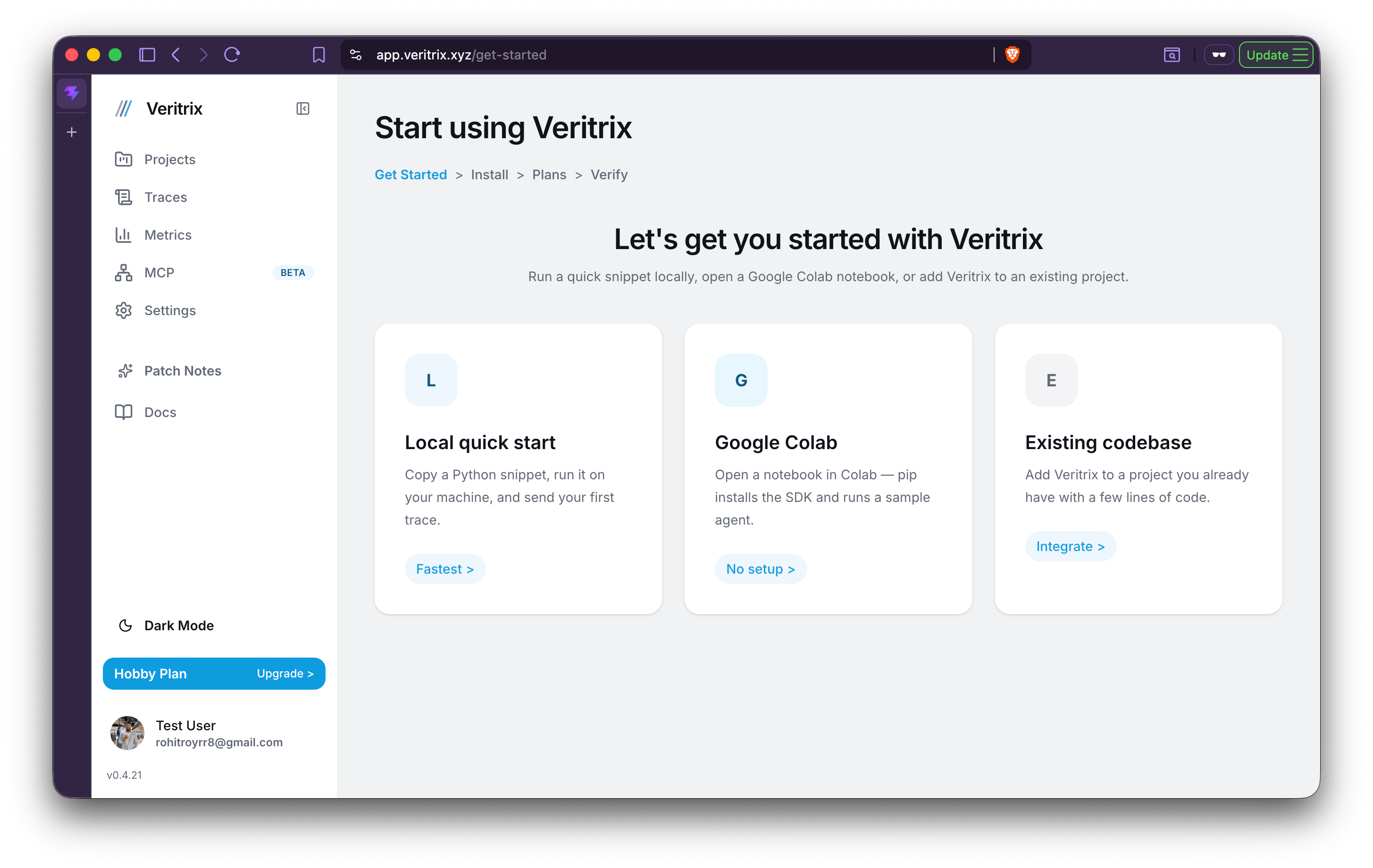 Not sure which to pick? Choose **Existing Codebase** if you already have an agent you want to observe, or **Fresh Code** if you just want to see Veritrix in action end-to-end.
## Step 4: Copy the generated code snippet
Based on your selection, Veritrix generates a code snippet pre-filled with your project's API key and endpoint. Copy it and paste it into your agent code — as close as possible to where your agent starts running, so it can capture every LLM call, tool use, and handoff.
Not sure which to pick? Choose **Existing Codebase** if you already have an agent you want to observe, or **Fresh Code** if you just want to see Veritrix in action end-to-end.
## Step 4: Copy the generated code snippet
Based on your selection, Veritrix generates a code snippet pre-filled with your project's API key and endpoint. Copy it and paste it into your agent code — as close as possible to where your agent starts running, so it can capture every LLM call, tool use, and handoff.
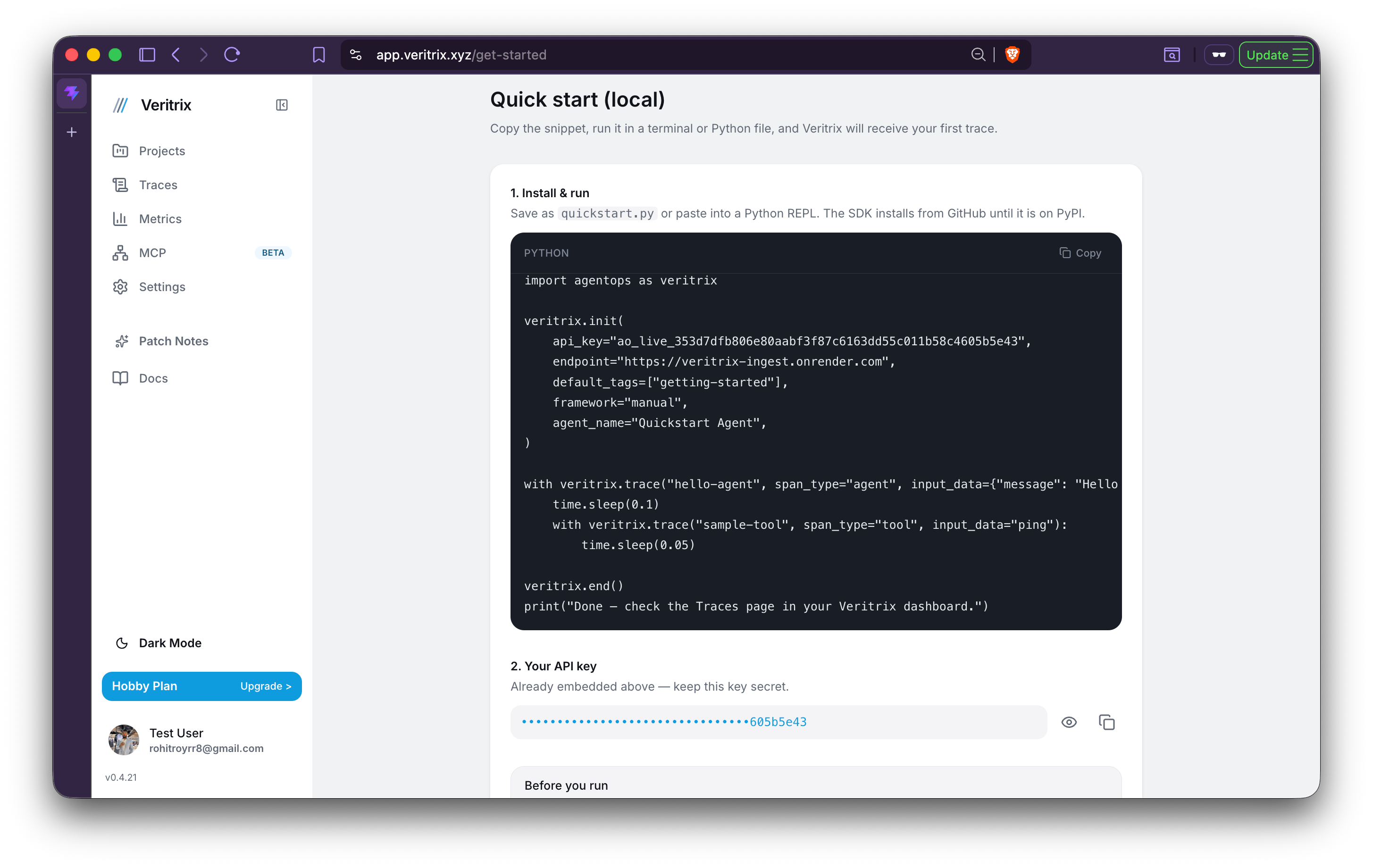 A typical snippet looks like this:
```python Add to your agent entrypoint theme={null}
import time
import agentops as veritrix
veritrix.init(
api_key="ao_live_353d7dfb806e80aabf3f87c6163dd55c011b58c4605b5e43",
endpoint="https://veritrix-ingest.onrender.com",
default_tags=["getting-started"],
framework="manual",
agent_name="Quickstart Agent",
)
with veritrix.trace("hello-agent", span_type="agent", input_data={"message": "Hello Veritrix"}):
time.sleep(0.1)
with veritrix.trace("sample-tool", span_type="tool", input_data="ping"):
time.sleep(0.05)
veritrix.end()
print("Done — check the Traces page in your Veritrix dashboard.")
```
Call `veritrix.init()` **before** you import or instantiate your LLM clients and agent framework. That's how Veritrix auto-instruments everything downstream.
## Step 5: Validate the connection
Back on the Get Started page, click **Verify**. Veritrix will wait for the first trace from your agent and confirm the SDK is connected correctly.
Run your agent once (locally, in Colab, or in your service) after adding the snippet, then hit **Verify**.
A typical snippet looks like this:
```python Add to your agent entrypoint theme={null}
import time
import agentops as veritrix
veritrix.init(
api_key="ao_live_353d7dfb806e80aabf3f87c6163dd55c011b58c4605b5e43",
endpoint="https://veritrix-ingest.onrender.com",
default_tags=["getting-started"],
framework="manual",
agent_name="Quickstart Agent",
)
with veritrix.trace("hello-agent", span_type="agent", input_data={"message": "Hello Veritrix"}):
time.sleep(0.1)
with veritrix.trace("sample-tool", span_type="tool", input_data="ping"):
time.sleep(0.05)
veritrix.end()
print("Done — check the Traces page in your Veritrix dashboard.")
```
Call `veritrix.init()` **before** you import or instantiate your LLM clients and agent framework. That's how Veritrix auto-instruments everything downstream.
## Step 5: Validate the connection
Back on the Get Started page, click **Verify**. Veritrix will wait for the first trace from your agent and confirm the SDK is connected correctly.
Run your agent once (locally, in Colab, or in your service) after adding the snippet, then hit **Verify**.
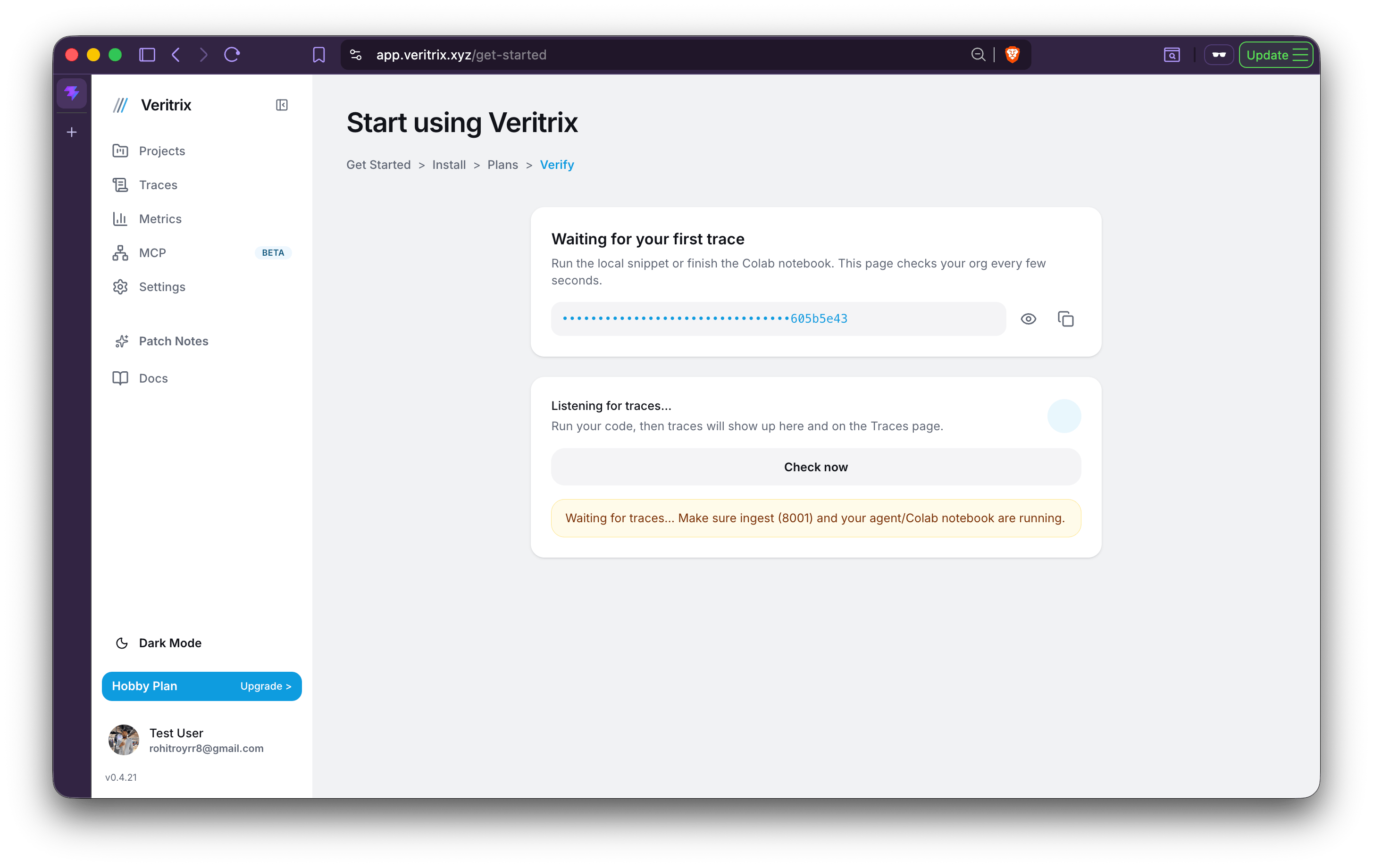 When validation succeeds, you'll see a success state and be redirected into the product.
## Step 6: View live traces
Every time your agent runs, Veritrix captures the run via the ingest API and displays it in the **Traces** tab in real time. Open the tab to see:
* The full trace waterfall for each run
* LLM calls, tool executions, and agent handoffs as spans
* Latency, token usage, and cost per span
When validation succeeds, you'll see a success state and be redirected into the product.
## Step 6: View live traces
Every time your agent runs, Veritrix captures the run via the ingest API and displays it in the **Traces** tab in real time. Open the tab to see:
* The full trace waterfall for each run
* LLM calls, tool executions, and agent handoffs as spans
* Latency, token usage, and cost per span
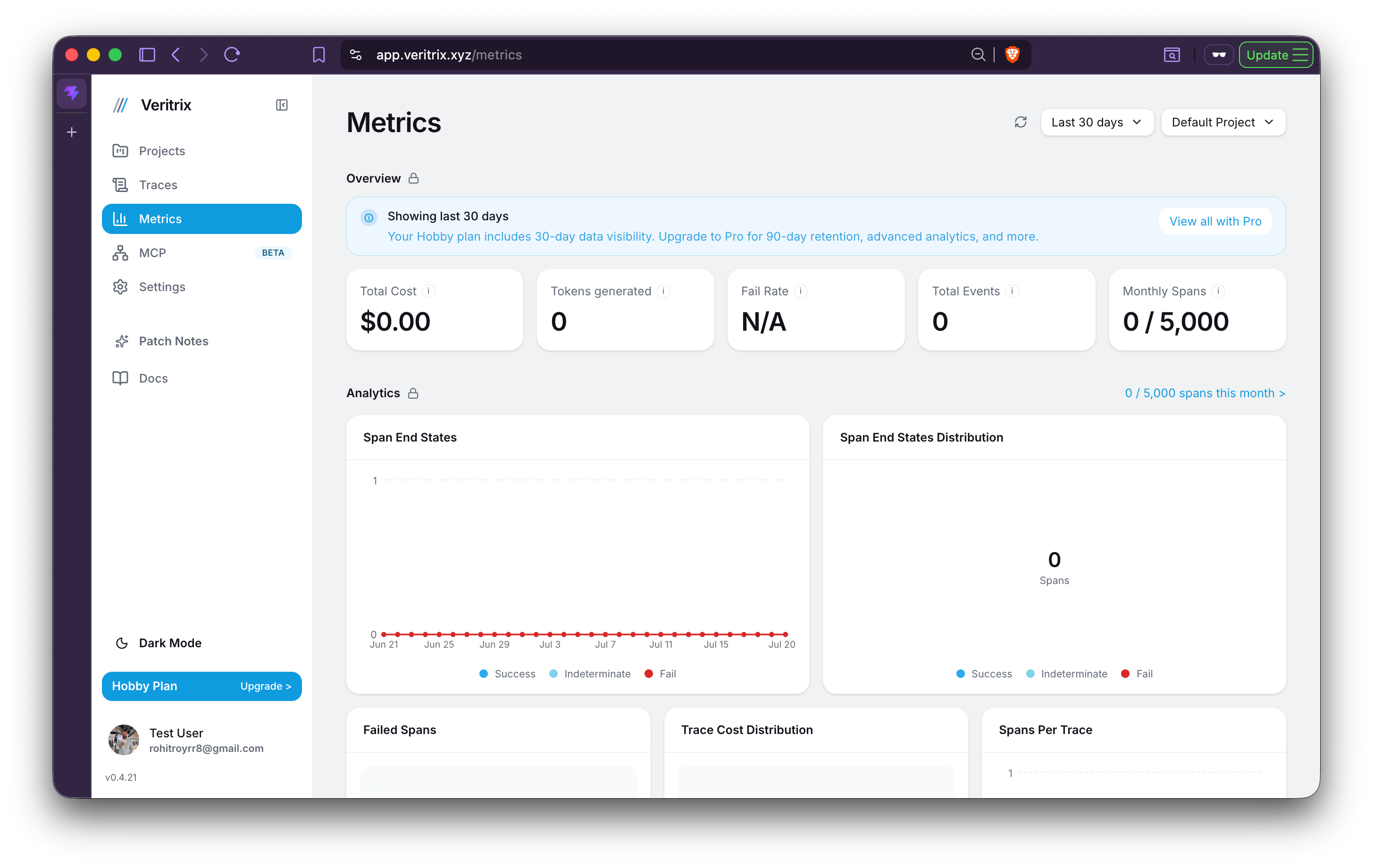 Click any trace to drill into the waterfall view and inspect exactly what your agent did.
## What's next
* Explore the [Trace Waterfall](/features/trace-waterfall) to understand each span in a run
* Learn how Veritrix models multi-agent systems in [Agents & Handoffs](/concepts/agents-and-handoffs)
* Set up [Alerting](/features/alerting) so you're notified before failures compound
* Dive into [SDK Configuration](/sdk/configuration) to tune the SDK for staging vs. production
Click any trace to drill into the waterfall view and inspect exactly what your agent did.
## What's next
* Explore the [Trace Waterfall](/features/trace-waterfall) to understand each span in a run
* Learn how Veritrix models multi-agent systems in [Agents & Handoffs](/concepts/agents-and-handoffs)
* Set up [Alerting](/features/alerting) so you're notified before failures compound
* Dive into [SDK Configuration](/sdk/configuration) to tune the SDK for staging vs. production